


Google Docs
scalekit47 toolsOAuth 2.0Files & DocumentsConnect to Google Docs. Create, edit, and collaborate on documents
Google Docs connector
-
Install the SDK
Section titled “Install the SDK”Terminal window npm install @scalekit-sdk/nodeTerminal window pip install scalekit -
Set your credentials
Section titled “Set your credentials”Add your Scalekit credentials to your
.envfile. Find values in app.scalekit.com > Developers > API Credentials..env SCALEKIT_ENVIRONMENT_URL=<your-environment-url>SCALEKIT_CLIENT_ID=<your-client-id>SCALEKIT_CLIENT_SECRET=<your-client-secret> -
Set up the connector
Section titled “Set up the connector”Register your Google Docs credentials with Scalekit so it handles the token lifecycle. You do this once per environment.
Dashboard setup steps
Register your Scalekit environment with the Google Docs connector so Scalekit handles the authentication flow and token lifecycle for you. The connection name you create will be used to identify and invoke the connection programmatically. Then complete the configuration in your application as follows:
-
Set up auth redirects
-
In Scalekit dashboard, go to AgentKit > Connections > Create Connection. Find Google Docs and click Create. Click Use your own credentials and copy the redirect URI. It looks like
https://<SCALEKIT_ENVIRONMENT_URL>/sso/v1/oauth/<CONNECTION_ID>/callback.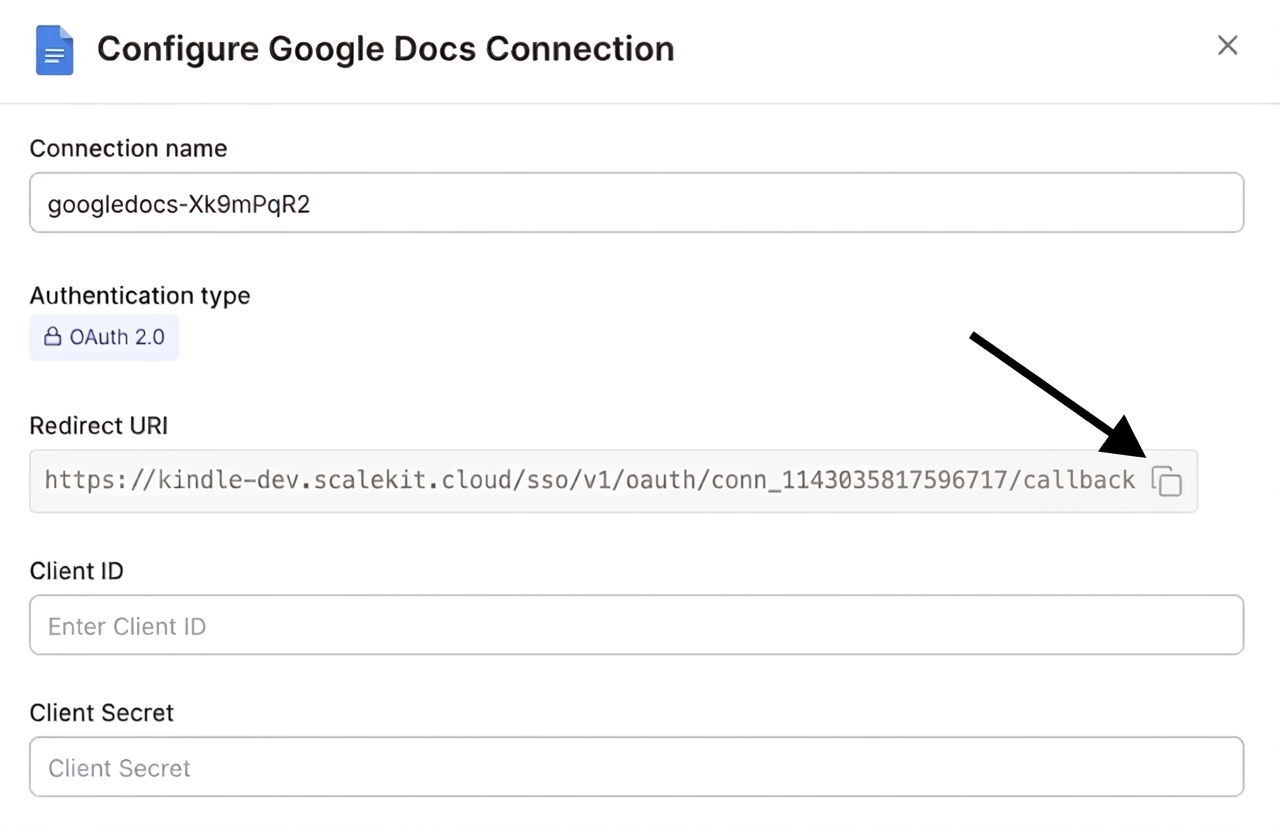
-
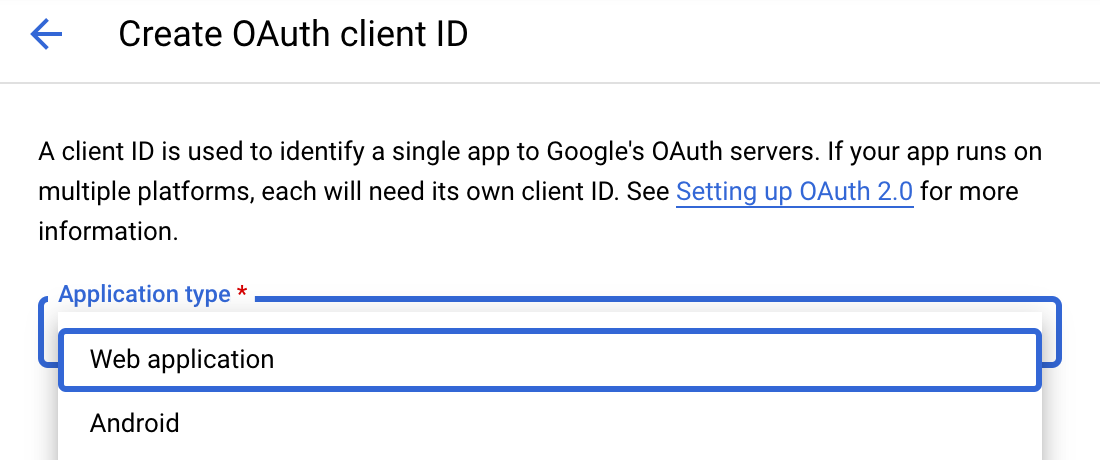
Navigate to Google Cloud Console → APIs & Services → Credentials. Select + Create Credentials, then OAuth client ID. Choose Web application from the Application type menu.
-
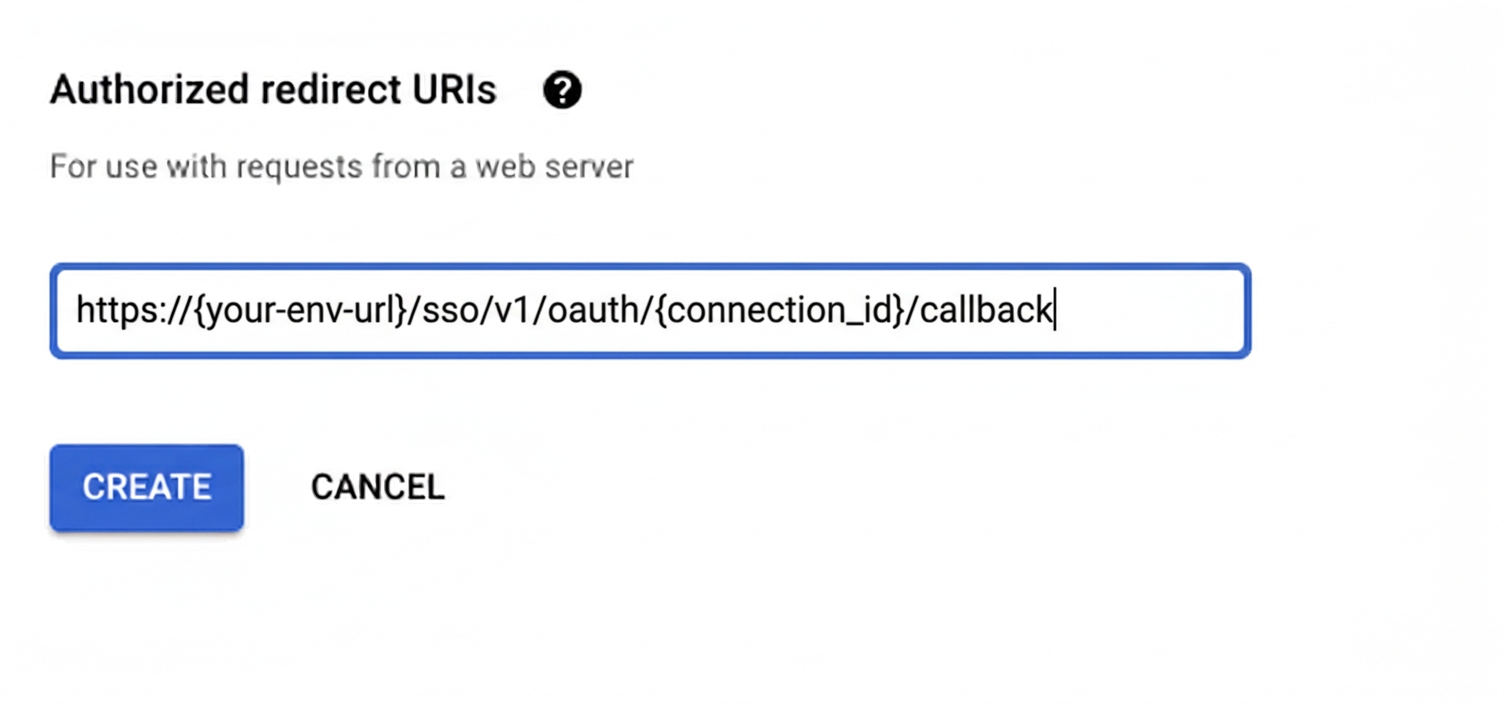
Under Authorized redirect URIs, click + Add URI, paste the redirect URI, and click Create.
-
-
Enable the Google Docs API
- In Google Cloud Console, go to APIs & Services → Library. Search for “Google Docs API” and click Enable.
-
Get client credentials
- Google provides your Client ID and Client Secret after you create the OAuth client ID in step 1.
-
Add credentials in Scalekit
-
In Scalekit dashboard, go to AgentKit > Connections and open the connection you created.
-
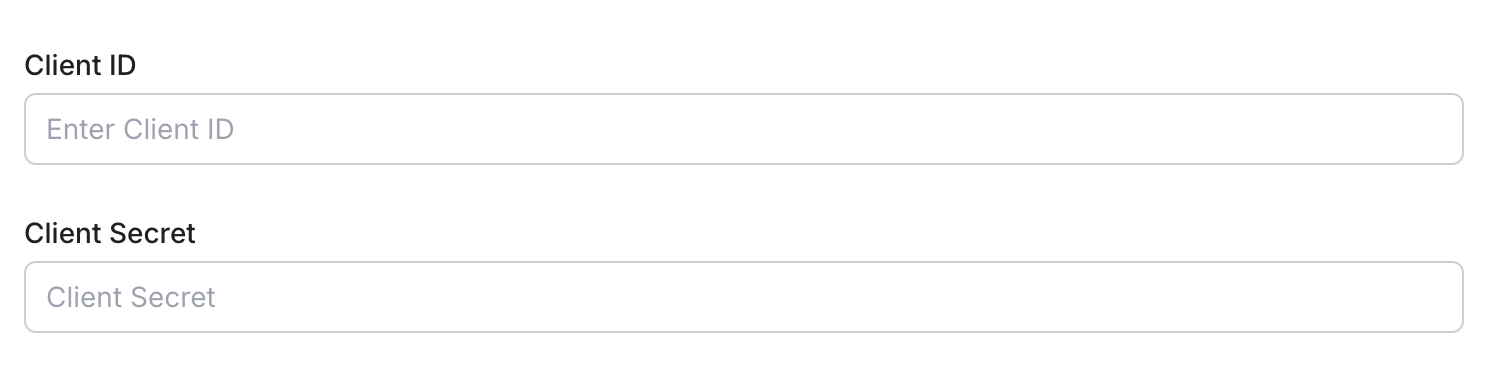
Enter your credentials:
- Client ID (from above)
- Client Secret (from above)
- Permissions (scopes — see Google API Scopes reference)
-
Click Save.
-
-
-
Authorize and make your first call
Section titled “Authorize and make your first call”quickstart.ts import { ScalekitClient } from '@scalekit-sdk/node'import 'dotenv/config'const scalekit = new ScalekitClient(process.env.SCALEKIT_ENV_URL,process.env.SCALEKIT_CLIENT_ID,process.env.SCALEKIT_CLIENT_SECRET,)const actions = scalekit.actionsconst connector = 'googledocs'const identifier = 'user_123'// Generate an authorization link for the userconst { link } = await actions.getAuthorizationLink({ connectionName: connector, identifier })console.log('Authorize Google Docs:', link)process.stdout.write('Press Enter after authorizing...')await new Promise(r => process.stdin.once('data', r))// Make your first callconst result = await actions.executeTool({connector,identifier,toolName: 'googledocs_list_documents',toolInput: {},})console.log(result)quickstart.py import osfrom scalekit.client import ScalekitClientfrom dotenv import load_dotenvload_dotenv()scalekit_client = ScalekitClient(env_url=os.getenv("SCALEKIT_ENV_URL"),client_id=os.getenv("SCALEKIT_CLIENT_ID"),client_secret=os.getenv("SCALEKIT_CLIENT_SECRET"),)actions = scalekit_client.actionsconnection_name = "googledocs"identifier = "user_123"# Generate an authorization link for the userlink_response = actions.get_authorization_link(connection_name=connection_name,identifier=identifier,)print("Authorize Google Docs:", link_response.link)input("Press Enter after authorizing...")# Make your first callresult = actions.execute_tool(tool_input={},tool_name="googledocs_list_documents",connection_name=connection_name,identifier=identifier,)print(result)
What you can do
Section titled “What you can do”Connect this agent connector to let your agent:
- Update table row style, table column properties, table cell style — Set a table row’s minimum height, mark it as a header-style row, or prevent it from splitting across pages
- Cells unmerge table, merge table — Unmerge a previously merged rectangular range of cells in an existing Google Doc table, splitting it back into individual cells
- Content replace named range — Replace the content of a named range (or every range sharing a name) in a Google Doc with new text
- Image replace, insert inline — Replace an existing image in a Google Doc with a new image fetched from a publicly accessible URL, keeping the same position and size
- Suggestion reject, accept — Reject a single tracked-change suggestion in a Google Doc by its suggestion ID, discarding the suggested edit
- Rows pin table header — Pin a number of leading rows in a Google Doc table so they repeat as a header when the table spans multiple pages
Common workflows
Section titled “Common workflows”Proxy API call
const result = await actions.request({ connectionName: 'googledocs', identifier: 'user_123', path: '/v1/documents/<DOCUMENT_ID>', method: 'GET',});console.log(result);result = actions.request( connection_name='googledocs', identifier='user_123', path="/v1/documents/<DOCUMENT_ID>", method="GET")print(result)googledocs_create_document
Create a new blank Google Doc with an optional title. Returns the new document’s ID and metadata.
| Name | Type | Required | Description |
|---|---|---|---|
schema_version | string | No | Optional schema version to use for tool execution |
title | string | No | Title of the new document |
tool_version | string | No | Optional tool version to use for execution |
googledocs_read_document
Read the complete content and structure of a Google Doc including text, formatting, tables, and metadata.
| Name | Type | Required | Description |
|---|---|---|---|
document_id | string | Yes | The ID of the Google Doc to read |
schema_version | string | No | Optional schema version to use for tool execution |
suggestions_view_mode | string | No | How suggestions are rendered in the response |
tool_version | string | No | Optional tool version to use for execution |
googledocs_update_document
Update the content of an existing Google Doc using batch update requests. Supports inserting and deleting text, formatting, tables, and other document elements.
| Name | Type | Required | Description |
|---|---|---|---|
document_id | string | Yes | The ID of the Google Doc to update |
requests | array<object> | Yes | Array of update requests to apply to the document |
schema_version | string | No | Optional schema version to use for tool execution |
tool_version | string | No | Optional tool version to use for execution |
write_control | object | No | Optional write control for revision management |
Execute a tool
const result = await actions.executeTool({ connector: 'googledocs', identifier: 'user_123', toolName: 'googledocs_create_document', toolInput: {},});console.log(result);result = actions.execute_tool( connection_name='googledocs', identifier='user_123', tool_name='googledocs_create_document', tool_input={},)print(result)Google OAuth consent screen verification
Before you use your own Google OAuth credentials in production, understand what end users see on Google’s consent screen when they authorize a connected account.
| Audience type | Consent screen behavior | When to use |
|---|---|---|
| Internal | Shows your App Name and logo from Branding settings | Only users in your Google Workspace or Cloud Identity organization can authorize the connector |
| External | Shows {env_name}.scalekit.dev until Google verifies your app | Any user with a Google account can authorize the connector |
Why External is required for most AgentKit connectors:
- Internal restricts authorization to users in your Google Workspace or Cloud Identity organization. Users with
@gmail.comor other Google accounts outside your organization cannot complete OAuth. - External is required when end users outside your organization authorize tool access through connected accounts.
- Organization-managed OAuth clients follow the same rules as personal or developer OAuth clients. Switching to an org-owned client does not bypass Google verification.
- Until Google completes verification of your External app, users see
scalekit.devon the consent screen. After verification, your App Name and logo appear.
During development:
- Add Test users under APIs & Services → OAuth consent screen while publishing status is Testing.
- On unverified apps, users can click Advanced → Go to app (unsafe) to proceed during testing.
- Google Workspace admins may need to allowlist your OAuth client.
For Google’s verification requirements and timeline, refer to Google’s OAuth consent screen verification guide.
Tool list
Section titled “Tool list”Use the exact tool names from the Tool list below when you call execute_tool. If you’re not sure which name to use, list the tools available for the current user first.
googledocs_accept_suggestion#Accept a single tracked-change suggestion in a Google Doc by its suggestion ID, permanently applying the suggested edit. Suggestion IDs are found in the document's JSON content when reading with suggestions view mode enabled.2 params
Accept a single tracked-change suggestion in a Google Doc by its suggestion ID, permanently applying the suggested edit. Suggestion IDs are found in the document's JSON content when reading with suggestions view mode enabled.
document_idstringrequiredThe ID of the Google Doc to editsuggestion_idstringrequiredThe ID of the suggestion to accept.googledocs_apply_text_style#Apply character formatting (bold, italic, underline, strikethrough, font size) to a range of text in a Google Doc. Only the attributes you set are changed.10 params
Apply character formatting (bold, italic, underline, strikethrough, font size) to a range of text in a Google Doc. Only the attributes you set are changed.
document_idstringrequiredThe ID of the Google Doc to editend_indexintegerrequiredEnd index of the range to format (exclusive)start_indexintegerrequiredZero-based start index of the range to format (inclusive)boldbooleanoptionalSet text to bold (true) or non-bold (false)font_size_ptnumberoptionalFont size in pointsitalicbooleanoptionalSet text to italic (true) or non-italic (false)schema_versionstringoptionalOptional schema version to use for tool executionstrikethroughbooleanoptionalSet text to struck through (true) or not (false)tool_versionstringoptionalOptional tool version to use for executionunderlinebooleanoptionalSet text to underlined (true) or not (false)googledocs_copy_document#Duplicate a Google Doc. Optionally rename the copy or place it in a specific Drive folder. Uses the Drive API and returns the new document's metadata.5 params
Duplicate a Google Doc. Optionally rename the copy or place it in a specific Drive folder. Uses the Drive API and returns the new document's metadata.
document_idstringrequiredThe ID of the Google Doc to copynamestringoptionalName for the copied document. If omitted, the copy is named 'Copy of <original name>'.parent_folder_idstringoptionalID of the destination folder for the copy. If omitted, the copy is placed in the same folder as the original.schema_versionstringoptionalOptional schema version to use for tool executiontool_versionstringoptionalOptional tool version to use for executiongoogledocs_create_comment#Add a comment to a Google Doc. Comments are managed through the Drive API. Optionally anchor the comment to a quoted section of the document.4 params
Add a comment to a Google Doc. Comments are managed through the Drive API. Optionally anchor the comment to a quoted section of the document.
contentstringrequiredThe plain-text content of the commentdocument_idstringrequiredThe ID of the Google Doc to comment onschema_versionstringoptionalOptional schema version to use for tool executiontool_versionstringoptionalOptional tool version to use for executiongoogledocs_create_document#Create a new blank Google Doc with an optional title. Returns the new document's ID and metadata.3 params
Create a new blank Google Doc with an optional title. Returns the new document's ID and metadata.
schema_versionstringoptionalOptional schema version to use for tool executiontitlestringoptionalTitle of the new documenttool_versionstringoptionalOptional tool version to use for executiongoogledocs_create_footnote#Insert a footnote reference at a location in a Google Doc, creating an empty footnote segment that can then be filled with text using googledocs_insert_text.2 params
Insert a footnote reference at a location in a Google Doc, creating an empty footnote segment that can then be filled with text using googledocs_insert_text.
document_idstringrequiredThe ID of the Google Doc to editindexintegeroptionalZero-based character index at which to insert the footnote reference. Omit to append at the end of the document body.googledocs_create_header#Create a header for a Google Doc (or for the section starting at a given section break). Returns the new header's ID in the response.2 params
Create a header for a Google Doc (or for the section starting at a given section break). Returns the new header's ID in the response.
document_idstringrequiredThe ID of the Google Doc to editsection_break_indexintegeroptionalZero-based character index of a section break. If provided, the header applies from that section onward instead of the whole document.googledocs_create_named_range#Create a named range over a span of content in a Google Doc. Named ranges let you reference and update a region of the document later by name.6 params
Create a named range over a span of content in a Google Doc. Named ranges let you reference and update a region of the document later by name.
document_idstringrequiredThe ID of the Google Doc to editend_indexintegerrequiredEnd index of the range (exclusive)namestringrequiredName for the range. Multiple ranges can share the same name.start_indexintegerrequiredZero-based start index of the range (inclusive)schema_versionstringoptionalOptional schema version to use for tool executiontool_versionstringoptionalOptional tool version to use for executiongoogledocs_create_paragraph_bullets#Turn the paragraphs in a range into a bulleted or numbered list using a preset glyph pattern.6 params
Turn the paragraphs in a range into a bulleted or numbered list using a preset glyph pattern.
document_idstringrequiredThe ID of the Google Doc to editend_indexintegerrequiredEnd index of the paragraph range (exclusive)start_indexintegerrequiredZero-based start index of the paragraph range (inclusive)bullet_presetstringoptionalThe bullet glyph preset. Use a BULLET_* preset for unordered lists or a NUMBERED_* preset for ordered lists.schema_versionstringoptionalOptional schema version to use for tool executiontool_versionstringoptionalOptional tool version to use for executiongoogledocs_delete_comment#Permanently delete a comment from a Google Doc. Comments are managed through the Drive API. This cannot be undone.4 params
Permanently delete a comment from a Google Doc. Comments are managed through the Drive API. This cannot be undone.
comment_idstringrequiredThe ID of the comment to deletedocument_idstringrequiredThe ID of the Google Doc that holds the commentschema_versionstringoptionalOptional schema version to use for tool executiontool_versionstringoptionalOptional tool version to use for executiongoogledocs_delete_content_range#Delete content between two character indexes in a Google Doc. The start index is inclusive and the end index is exclusive.5 params
Delete content between two character indexes in a Google Doc. The start index is inclusive and the end index is exclusive.
document_idstringrequiredThe ID of the Google Doc to editend_indexintegerrequiredEnd index of the range to delete (exclusive)start_indexintegerrequiredZero-based start index of the range to delete (inclusive)schema_versionstringoptionalOptional schema version to use for tool executiontool_versionstringoptionalOptional tool version to use for executiongoogledocs_delete_header#Delete a header from a Google Doc by its header ID.2 params
Delete a header from a Google Doc by its header ID.
document_idstringrequiredThe ID of the Google Doc to editheader_idstringrequiredThe ID of the header to delete, as returned by googledocs_create_header or found in the document's JSON content.googledocs_delete_named_range#Delete named ranges from a Google Doc. Provide a named range ID to remove one specific range, or a name to remove all ranges sharing that name. The underlying document content is not deleted.5 params
Delete named ranges from a Google Doc. Provide a named range ID to remove one specific range, or a name to remove all ranges sharing that name. The underlying document content is not deleted.
document_idstringrequiredThe ID of the Google Doc to editnamestringoptionalThe name of the range(s) to delete. All named ranges with this name are removed.named_range_idstringoptionalThe ID of a specific named range to delete. Takes precedence over name when both are provided.schema_versionstringoptionalOptional schema version to use for tool executiontool_versionstringoptionalOptional tool version to use for executiongoogledocs_delete_paragraph_bullets#Remove list bullets or numbering from the paragraphs in a range, converting them back to normal paragraphs.5 params
Remove list bullets or numbering from the paragraphs in a range, converting them back to normal paragraphs.
document_idstringrequiredThe ID of the Google Doc to editend_indexintegerrequiredEnd index of the paragraph range (exclusive)start_indexintegerrequiredZero-based start index of the paragraph range (inclusive)schema_versionstringoptionalOptional schema version to use for tool executiontool_versionstringoptionalOptional tool version to use for executiongoogledocs_delete_suggestion#Delete a single tracked-change suggestion in a Google Doc by its suggestion ID, removing the suggestion entirely without applying or rejecting it as a reviewed change.2 params
Delete a single tracked-change suggestion in a Google Doc by its suggestion ID, removing the suggestion entirely without applying or rejecting it as a reviewed change.
document_idstringrequiredThe ID of the Google Doc to editsuggestion_idstringrequiredThe ID of the suggestion to delete.googledocs_delete_table_column#Delete the column spanned by a reference cell in an existing table in a Google Doc, identified by the table's start index and the cell's row/column position.4 params
Delete the column spanned by a reference cell in an existing table in a Google Doc, identified by the table's start index and the cell's row/column position.
column_indexintegerrequiredZero-based column index of the cell whose column should be deleted.document_idstringrequiredThe ID of the Google Doc to editrow_indexintegerrequiredZero-based row index of the cell whose column should be deleted.table_start_indexintegerrequiredThe zero-based character index where the table starts in the document.googledocs_delete_table_row#Delete the row spanned by a reference cell in an existing table in a Google Doc, identified by the table's start index and the cell's row/column position.4 params
Delete the row spanned by a reference cell in an existing table in a Google Doc, identified by the table's start index and the cell's row/column position.
column_indexintegerrequiredZero-based column index of the cell whose row should be deleted.document_idstringrequiredThe ID of the Google Doc to editrow_indexintegerrequiredZero-based row index of the cell whose row should be deleted.table_start_indexintegerrequiredThe zero-based character index where the table starts in the document.googledocs_export_document#Export a Google Doc to another format such as PDF, plain text, HTML, Word (.docx), RTF, or EPUB. Uses the Drive API export endpoint. Exported files are limited to 10 MB.4 params
Export a Google Doc to another format such as PDF, plain text, HTML, Word (.docx), RTF, or EPUB. Uses the Drive API export endpoint. Exported files are limited to 10 MB.
document_idstringrequiredThe ID of the Google Doc to exportmime_typestringrequiredThe MIME type of the target export formatschema_versionstringoptionalOptional schema version to use for tool executiontool_versionstringoptionalOptional tool version to use for executiongoogledocs_insert_inline_image#Insert an inline image from a publicly accessible URL into a Google Doc. Optionally set the image width and height in points. Provide an index to insert at that position, or omit it to append at the end of the document body.7 params
Insert an inline image from a publicly accessible URL into a Google Doc. Optionally set the image width and height in points. Provide an index to insert at that position, or omit it to append at the end of the document body.
document_idstringrequiredThe ID of the Google Doc to editimage_uristringrequiredPublicly accessible URL of the image to insert (PNG, JPEG, or GIF, max 50 MB / 25 megapixels)height_ptnumberoptionalImage height in pointsindexintegeroptionalZero-based character index at which to insert the image. Omit to append at the end of the document body.schema_versionstringoptionalOptional schema version to use for tool executiontool_versionstringoptionalOptional tool version to use for executionwidth_ptnumberoptionalImage width in pointsgoogledocs_insert_page_break#Insert a page break into a Google Doc. Provide an index to insert at that position, or omit it to append at the end of the document body.4 params
Insert a page break into a Google Doc. Provide an index to insert at that position, or omit it to append at the end of the document body.
document_idstringrequiredThe ID of the Google Doc to editindexintegeroptionalZero-based character index at which to insert the page break. Omit to append at the end of the document body.schema_versionstringoptionalOptional schema version to use for tool executiontool_versionstringoptionalOptional tool version to use for executiongoogledocs_insert_person#Insert an @-mention 'smart chip' for a person by email address at a location in the document. Provide an index to insert at that position, or omit it to append at the end of the document body.4 params
Insert an @-mention 'smart chip' for a person by email address at a location in the document. Provide an index to insert at that position, or omit it to append at the end of the document body.
document_idstringrequiredThe ID of the Google Doc to editemailstringrequiredEmail address of the person to @-mention.indexintegeroptionalZero-based character index at which to insert the mention. Omit to append at the end of the document body.namestringoptionalDisplay name to show in the mention instead of the email address.googledocs_insert_rich_link#Insert a rich-link 'smart chip' referencing another Google Drive file (Sheet, Slide, Doc, or other Workspace/Chrome Web Store item) at a location in the document. The chip's displayed title always reflects the linked resource's current title and cannot be overridden. Provide an index to insert at that position, or omit it to append at the end of the document body.3 params
Insert a rich-link 'smart chip' referencing another Google Drive file (Sheet, Slide, Doc, or other Workspace/Chrome Web Store item) at a location in the document. The chip's displayed title always reflects the linked resource's current title and cannot be overridden. Provide an index to insert at that position, or omit it to append at the end of the document body.
document_idstringrequiredThe ID of the Google Doc to edituristringrequiredURI of the Drive file or resource to render as a rich link. Currently only Google Workspace files (Docs, Sheets, Slides, etc.) and Chrome Web Store items are supported.indexintegeroptionalZero-based character index at which to insert the rich link. Omit to append at the end of the document body.googledocs_insert_section_break#Insert a section break into a Google Doc at a given index, or at the end of the document body if no index is given. Section breaks are required before a section can have its own header, footer, or column layout.3 params
Insert a section break into a Google Doc at a given index, or at the end of the document body if no index is given. Section breaks are required before a section can have its own header, footer, or column layout.
document_idstringrequiredThe ID of the Google Doc to editindexintegeroptionalZero-based character index at which to insert the section break. Omit to append at the end of the document body.section_typestringoptionalThe type of section break to insert. CONTINUOUS keeps the section on the same page; NEXT_PAGE starts the section on a new page.googledocs_insert_table#Insert an empty table with the given number of rows and columns into a Google Doc. Provide an index to insert at that position, or omit it to append at the end of the document body.6 params
Insert an empty table with the given number of rows and columns into a Google Doc. Provide an index to insert at that position, or omit it to append at the end of the document body.
columnsintegerrequiredNumber of columns in the tabledocument_idstringrequiredThe ID of the Google Doc to editrowsintegerrequiredNumber of rows in the tableindexintegeroptionalZero-based character index at which to insert the table. Omit to append at the end of the document body.schema_versionstringoptionalOptional schema version to use for tool executiontool_versionstringoptionalOptional tool version to use for executiongoogledocs_insert_table_column#Insert a new empty column into an existing table in a Google Doc, to the left or right of a reference cell identified by the table's start index and the cell's row/column position.5 params
Insert a new empty column into an existing table in a Google Doc, to the left or right of a reference cell identified by the table's start index and the cell's row/column position.
column_indexintegerrequiredZero-based column index of the reference cell that the new column is inserted relative to.document_idstringrequiredThe ID of the Google Doc to editrow_indexintegerrequiredZero-based row index of the reference cell that the new column is inserted relative to.table_start_indexintegerrequiredThe zero-based character index where the table starts in the document.insert_rightbooleanoptionalWhether the new column is inserted to the right (true) or left (false) of the reference cell's column.googledocs_insert_table_row#Insert a new empty row into an existing table in a Google Doc, above or below a reference cell identified by the table's start index and the cell's row/column position.5 params
Insert a new empty row into an existing table in a Google Doc, above or below a reference cell identified by the table's start index and the cell's row/column position.
column_indexintegerrequiredZero-based column index of the reference cell that the new row is inserted relative to.document_idstringrequiredThe ID of the Google Doc to editrow_indexintegerrequiredZero-based row index of the reference cell that the new row is inserted relative to.table_start_indexintegerrequiredThe zero-based character index where the table starts in the document.insert_belowbooleanoptionalWhether the new row is inserted below (true) or above (false) the reference cell's row.googledocs_insert_text#Insert text into a Google Doc at a specific location. Provide an index to insert at that position, or omit it to append at the end of the document body.5 params
Insert text into a Google Doc at a specific location. Provide an index to insert at that position, or omit it to append at the end of the document body.
document_idstringrequiredThe ID of the Google Doc to edittextstringrequiredThe text to insertindexintegeroptionalZero-based character index at which to insert the text. Omit to append at the end of the document body.schema_versionstringoptionalOptional schema version to use for tool executiontool_versionstringoptionalOptional tool version to use for executiongoogledocs_list_comments#List the comments on a Google Doc, including their replies and resolved status. Comments are managed through the Drive API. Supports pagination.7 params
List the comments on a Google Doc, including their replies and resolved status. Comments are managed through the Drive API. Supports pagination.
document_idstringrequiredThe ID of the Google Doc whose comments to listinclude_deletedbooleanoptionalWhether to include deleted comments. Deleted comments have their content and author stripped. Defaults to false.page_sizeintegeroptionalMaximum number of comments to return per page (1-100, default 20)page_tokenstringoptionalToken for retrieving the next page of results. Use the nextPageToken from a previous response.schema_versionstringoptionalOptional schema version to use for tool executionstart_modified_timestringoptionalOnly return comments modified after this RFC 3339 timestamptool_versionstringoptionalOptional tool version to use for executiongoogledocs_list_documents#List all Google Docs documents in the user's Drive. Optionally search by document name. Returns document IDs, names, and metadata with pagination support.4 params
List all Google Docs documents in the user's Drive. Optionally search by document name. Returns document IDs, names, and metadata with pagination support.
order_bystringoptionalSort order for results. Examples: modifiedTime desc, name asc, createdTime descpage_sizeintegeroptionalNumber of documents to return per page (max 1000, default 100)page_tokenstringoptionalToken for retrieving the next page of results. Use the nextPageToken from a previous response.querystringoptionalDrive search query to filter documents. Defaults to all Google Docs. To search by name, use: mimeType = 'application/vnd.google-apps.document' and trashed = false and name contains 'report'googledocs_merge_table_cells#Merge a rectangular range of cells in an existing Google Doc table into one cell. The range starts at a reference cell and spans the given number of rows and columns.6 params
Merge a rectangular range of cells in an existing Google Doc table into one cell. The range starts at a reference cell and spans the given number of rows and columns.
column_indexintegerrequiredZero-based column index of the top-left cell of the range to merge.document_idstringrequiredThe ID of the Google Doc to editrow_indexintegerrequiredZero-based row index of the top-left cell of the range to merge.table_start_indexintegerrequiredThe zero-based character index where the table starts in the document.column_spanintegeroptionalNumber of columns the merged cell should span, starting from column_index.row_spanintegeroptionalNumber of rows the merged cell should span, starting from row_index.googledocs_pin_table_header_rows#Pin a number of leading rows in a Google Doc table so they repeat as a header when the table spans multiple pages. Pass 0 to unpin all rows.3 params
Pin a number of leading rows in a Google Doc table so they repeat as a header when the table spans multiple pages. Pass 0 to unpin all rows.
document_idstringrequiredThe ID of the Google Doc to editpinned_header_rows_countintegerrequiredNumber of leading rows to pin as repeating headers. 0 unpins all rows.table_start_indexintegerrequiredThe zero-based character index where the table starts in the document.googledocs_read_document#Read the complete content and structure of a Google Doc including text, formatting, tables, and metadata.4 params
Read the complete content and structure of a Google Doc including text, formatting, tables, and metadata.
document_idstringrequiredThe ID of the Google Doc to readschema_versionstringoptionalOptional schema version to use for tool executionsuggestions_view_modestringoptionalHow suggestions are rendered in the responsetool_versionstringoptionalOptional tool version to use for executiongoogledocs_reject_suggestion#Reject a single tracked-change suggestion in a Google Doc by its suggestion ID, discarding the suggested edit. Suggestion IDs are found in the document's JSON content when reading with suggestions view mode enabled.2 params
Reject a single tracked-change suggestion in a Google Doc by its suggestion ID, discarding the suggested edit. Suggestion IDs are found in the document's JSON content when reading with suggestions view mode enabled.
document_idstringrequiredThe ID of the Google Doc to editsuggestion_idstringrequiredThe ID of the suggestion to reject.googledocs_replace_all_text#Find every occurrence of a text string in a Google Doc and replace it with new text. Useful for templating and bulk edits.6 params
Find every occurrence of a text string in a Google Doc and replace it with new text. Useful for templating and bulk edits.
document_idstringrequiredThe ID of the Google Doc to editfind_textstringrequiredThe exact text to search forreplace_textstringrequiredThe text to substitute for each matchmatch_casebooleanoptionalWhether the search is case-sensitive. Defaults to false.schema_versionstringoptionalOptional schema version to use for tool executiontool_versionstringoptionalOptional tool version to use for executiongoogledocs_replace_image#Replace an existing image in a Google Doc with a new image fetched from a publicly accessible URL, keeping the same position and size.4 params
Replace an existing image in a Google Doc with a new image fetched from a publicly accessible URL, keeping the same position and size.
document_idstringrequiredThe ID of the Google Doc to editimage_object_idstringrequiredThe object ID of the existing inline image to replace, as found in the document's JSON content.uristringrequiredPublicly accessible URI of the new image, max 25 megapixels and 50MB, in a supported format (PNG, JPEG, GIF).image_replace_methodstringoptionalHow the new image should be scaled to fit the existing image's bounding box.googledocs_replace_named_range_content#Replace the content of a named range (or every range sharing a name) in a Google Doc with new text. Identify the range by its ID or by its name.4 params
Replace the content of a named range (or every range sharing a name) in a Google Doc with new text. Identify the range by its ID or by its name.
document_idstringrequiredThe ID of the Google Doc to edittextstringrequiredThe new text that will replace the current content of the named range(s).named_range_idstringoptionalThe ID of a single named range whose content should be replaced. Provide either this or named_range_name, not both.named_range_namestringoptionalThe name of the named range(s) whose content should be replaced. All ranges sharing this name are replaced. Provide either this or named_range_id, not both.googledocs_reply_to_comment#Post a reply to an existing comment on a Google Doc. Comments and replies are managed through the Drive API.5 params
Post a reply to an existing comment on a Google Doc. Comments and replies are managed through the Drive API.
comment_idstringrequiredThe ID of the comment to reply tocontentstringrequiredThe plain-text content of the replydocument_idstringrequiredThe ID of the Google Doc that holds the commentschema_versionstringoptionalOptional schema version to use for tool executiontool_versionstringoptionalOptional tool version to use for executiongoogledocs_resolve_comment#Resolve an open comment on a Google Doc by posting a resolving reply. Comments are managed through the Drive API. Optionally include reply text alongside the resolution.5 params
Resolve an open comment on a Google Doc by posting a resolving reply. Comments are managed through the Drive API. Optionally include reply text alongside the resolution.
comment_idstringrequiredThe ID of the comment to resolvedocument_idstringrequiredThe ID of the Google Doc that holds the commentcontentstringoptionalOptional reply text to post along with the resolutionschema_versionstringoptionalOptional schema version to use for tool executiontool_versionstringoptionalOptional tool version to use for executiongoogledocs_unmerge_table_cells#Unmerge a previously merged rectangular range of cells in an existing Google Doc table, splitting it back into individual cells.6 params
Unmerge a previously merged rectangular range of cells in an existing Google Doc table, splitting it back into individual cells.
column_indexintegerrequiredZero-based column index of the top-left cell of the merged range to split apart.document_idstringrequiredThe ID of the Google Doc to editrow_indexintegerrequiredZero-based row index of the top-left cell of the merged range to split apart.table_start_indexintegerrequiredThe zero-based character index where the table starts in the document.column_spanintegeroptionalNumber of columns spanned by the merged cell to unmerge.row_spanintegeroptionalNumber of rows spanned by the merged cell to unmerge.googledocs_update_document#Update the content of an existing Google Doc using batch update requests. Supports inserting and deleting text, formatting, tables, and other document elements.5 params
Update the content of an existing Google Doc using batch update requests. Supports inserting and deleting text, formatting, tables, and other document elements.
document_idstringrequiredThe ID of the Google Doc to updaterequestsarrayrequiredArray of update requests to apply to the documentschema_versionstringoptionalOptional schema version to use for tool executiontool_versionstringoptionalOptional tool version to use for executionwrite_controlobjectoptionalOptional write control for revision managementgoogledocs_update_document_style#Update document-level style properties of a Google Doc, such as page margins and page size. Only the fields you provide are changed.7 params
Update document-level style properties of a Google Doc, such as page margins and page size. Only the fields you provide are changed.
document_idstringrequiredThe ID of the Google Doc to editmargin_bottom_ptnumberoptionalBottom page margin in points. Leave blank to keep the current value.margin_left_ptnumberoptionalLeft page margin in points. Leave blank to keep the current value.margin_right_ptnumberoptionalRight page margin in points. Leave blank to keep the current value.margin_top_ptnumberoptionalTop page margin in points. Leave blank to keep the current value.page_height_ptnumberoptionalPage height in points. Must be provided together with page_width_pt.page_width_ptnumberoptionalPage width in points. Must be provided together with page_height_pt.googledocs_update_paragraph_style#Apply paragraph-level formatting to a range: set a named style such as a heading or title, and/or set text alignment. Use this to turn text into a heading.7 params
Apply paragraph-level formatting to a range: set a named style such as a heading or title, and/or set text alignment. Use this to turn text into a heading.
document_idstringrequiredThe ID of the Google Doc to editend_indexintegerrequiredEnd index of the paragraph range (exclusive)start_indexintegerrequiredZero-based start index of the paragraph range (inclusive)alignmentstringoptionalParagraph alignmentnamed_style_typestringoptionalNamed paragraph style to apply (e.g. a heading level, title, or normal text)schema_versionstringoptionalOptional schema version to use for tool executiontool_versionstringoptionalOptional tool version to use for executiongoogledocs_update_table_cell_style#Apply background color and/or padding to a rectangular range of cells in a Google Doc table, starting at a reference cell and spanning the given number of rows and columns.8 params
Apply background color and/or padding to a rectangular range of cells in a Google Doc table, starting at a reference cell and spanning the given number of rows and columns.
background_color_hexstringrequiredBackground color to apply to the cell range, as a 6-digit hex code.column_indexintegerrequiredZero-based column index of the top-left cell of the range to style.document_idstringrequiredThe ID of the Google Doc to editrow_indexintegerrequiredZero-based row index of the top-left cell of the range to style.table_start_indexintegerrequiredThe zero-based character index where the table starts in the document.column_spanintegeroptionalNumber of columns the styled range should span, starting from column_index.padding_ptnumberoptionalOptional uniform padding (top, bottom, left, right) to apply to the cell range, in points.row_spanintegeroptionalNumber of rows the styled range should span, starting from row_index.googledocs_update_table_column_properties#Set a table column's width in points, or make it auto-fit by setting an evenly-distributed width type. Applies to all columns in the table unless column_indices restricts it to specific ones.5 params
Set a table column's width in points, or make it auto-fit by setting an evenly-distributed width type. Applies to all columns in the table unless column_indices restricts it to specific ones.
document_idstringrequiredThe ID of the Google Doc to edittable_start_indexintegerrequiredThe zero-based character index where the table starts in the document.width_typestringrequiredHow the column width is determined. FIXED_WIDTH uses width_pt; EVENLY_DISTRIBUTED auto-fits columns to share the table's width equally.column_indicesstringoptionalComma-separated zero-based column indices to apply the change to. Omit to apply to every column in the table.width_ptnumberoptionalColumn width in points. Required when width_type is FIXED_WIDTH; ignored for EVENLY_DISTRIBUTED. Must be at least 5 points.googledocs_update_table_row_style#Set a table row's minimum height, mark it as a header-style row, or prevent it from splitting across pages. Complements update_table_cell_style (per-cell) and pin_table_header_rows (repeating header count). Applies to all rows in the table unless row_indices restricts it to specific ones. Provide at least one of min_row_height_pt, table_header, or prevent_overflow.6 params
Set a table row's minimum height, mark it as a header-style row, or prevent it from splitting across pages. Complements update_table_cell_style (per-cell) and pin_table_header_rows (repeating header count). Applies to all rows in the table unless row_indices restricts it to specific ones. Provide at least one of min_row_height_pt, table_header, or prevent_overflow.
document_idstringrequiredThe ID of the Google Doc to edittable_start_indexintegerrequiredThe zero-based character index where the table starts in the document.min_row_height_ptnumberoptionalMinimum row height in points. The row grows to fit content taller than this.prevent_overflowbooleanoptionalWhether the affected rows are prevented from splitting across page or column boundaries.row_indicesstringoptionalComma-separated zero-based row indices to apply the change to. Omit to apply to every row in the table.table_headerbooleanoptionalWhether the affected rows are styled as header rows.